Overview The CICB MSI installer provides enterprise-grade deployment capabilities using Windows Installer technology. This guide covers installation, silent deployment, configuration, optional feature flags, uninstallation, and troubleshooting. Installer Type The current Windows MSI packaging model uses a single package, typically named CICBv2-Win-vX.X.X.X.msi. This package installs the CICB application set as one product. …
Debug Mode on Windows 10+ / Server 2019+ IMPORTANTA running debug log will be created and will grow over time. Make sure to delete the trigger file (debug.txt) once you are done with debugging. Proxy Issue Check your system-level and user-level proxy and bypass settings. On Windows, environment inspection through …
SOFTWARE PRODUCT: Cyber Intel Classification Banner (CICB)Service Name: Cyber Intel Systems – Basic Support Services (BSS)Service Provider: ARKSOFT INC DBA Cyber Intel Systems (hereinafter referred to as “CIS”)Scope of Coverage: Cyber Intel Classification Banner (CICB) software and related servicesUpdated: 01/30/2025Version: 1.00 1. Service Overview 2. Scope of Services 2.1 Included …
SOFTWARE PRODUCT: Cyber Intel Classification Banner (CICB)Service Name: Cyber Intel Systems – Technical Support Services (TSS)Service Provider: ARKSOFT INC DBA Cyber Intel Systems (hereinafter referred to as “CIS”)Scope of Coverage: Cyber Intel Classification Banner (CICB) software and related servicesUpdated: 01/30/2025Version: 1.00 1. Service Overview 2. Scope of Services 2.1 Included …
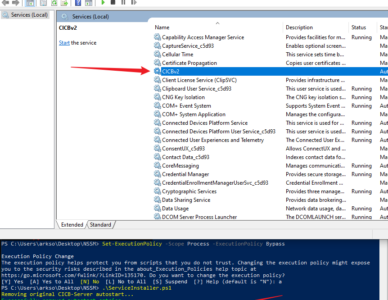
CAUTIONWhen CICB-Server.exe runs as a Windows service, the interactive UI is not the primary management surface for the running service session. Current CICB releases support running the server as a native Windows service. This allows direct registration with the Windows Service Control Manager without third-party wrappers. Register the Service Open …
CICB uses color codes for the classification levels used by the government and the armed forces. Here are some examples, but the list is not exhaustive. You can configure CICB to comply with any of the standards listed below.All text content (left, middle, right) and color (text, background) are customizable. …
Definition of Standalone: A machine or VM/VDI installed BOTH CICB-Server and CICB-Client with/without any network access when using it. Let’s say a customer bought a CICB package that contained 1 CICB-Server and 3 CICB-Clients. Now, the customer can choose how to distribute his licenses to fit his needs. There are …
!!! WARNING !!!Once you turn on the LDAP SYNC, your local setting groups with screen settings will save to your local database. All new user groups will be pulled from your AD server, you can switch back to local groups at any time, but only one type of group can …
IMPORTANT: CICB is designed to communicate efficiently between clients and servers, and the number of screens does not materially change the communication model. The CICB client does not upload user files or workstation content to the server. The server-side metadata exchanged for management and banner coordination is limited to operational …
SOFTWARE PRODUCT: Cyber Intel Classification Banner (CICB)PUBLISHER: ARKSOFT INCDBA: CYBER INTEL SYSTEMSUpdated: 2026-02-05Version: 1.05 IMPORTANT READ THOROUGHLYThis End-User License Agreement is a legal agreement between you (either an individual or an entity) and CYBER INTEL SYSTEMS (CIS) for the CIS product identified above, which includes computer software and may include …
With the CICB-Client/CICB-Server or C/S structures, IT admins have many ways to achieve many scenarios.
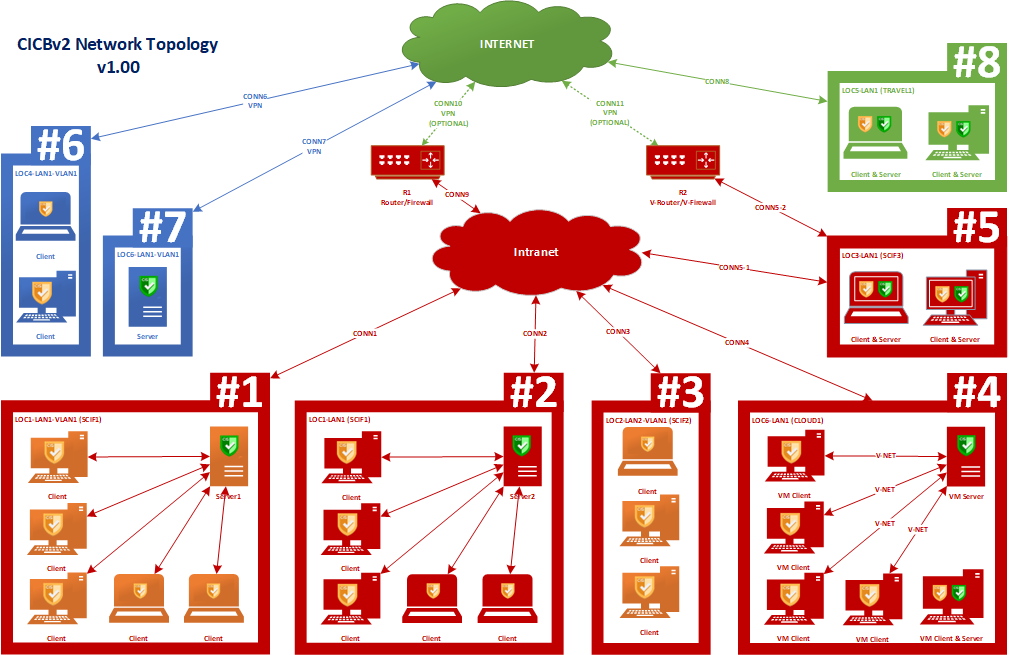
NOTICE The setup shown below is just an example use case that customers can follow or design their own use case that fits their needs. A firewall configuration may be needed.
Green Color: Public Network/Commercial Network Blue Color: Standalone/Unsecured Network/NIPR Red Color: Airgap/Private Network/Offline/SCIF/SIPR/Intranet
As you can see from the above network topology setup. There are eight tyep of usecases in total with the following specifications and licenses:
Topology Usecase #
#1
#2
#3
#4
#5
#6
#7
#8
Environment
Airgap/Offline
Airgap/Offline
Airgap/Offline
Airgap/Offline
Airgap/Offline
Remote/Online
Remote/Online
Travel/Off-Grid
Internet Required
No
No
Yes
No
No
Yes
Yes
No
Intranet Required
As Need
As Need
Yes
As Need
No
Yes
Yes
No
LAN Required
Yes
Yes
No
Yes
No
No
No
No
Domain Server Qty.
1
1
/
1
/
/
1
/
Domain Workstation Qty.
5
5
3
4
/
2
/
/
Standalone Workstation Qty. (include VMs)
/
/
/
1
2
/
/
/
Qty. of CICB-Server Need
1
1
@^ 1
1
/
@^ 1
/
/
CICB-Client License Need
5
5
3
4
/
2
/
/
CICB Standalone License Need
/
/
/
? 1
? 2
/
/
2
*Total CICBv2 Licenses Need
5
5
3
5
2
2
& 0
2
*: Total CICBv2 Licenses Need = Qty. of CICB-Server Need x CICB-Client License Need + Standalone License Need @: You can have a region using another region’s licenses via an intranet or internet connection. e.g. Region#4 clients connect to Region#5-Server2. (You may need to increase the total license capacity for clients connected to Region#5-Server2) ^: The client cannot work alone. Therefore, a server is required. &: All licenses are based on the total number of clients, not the server. However, without clients, the server will be meaningless. ?: A standalone license includes 1 Server and 1 Client. (AKA Self-Served Setup)
Windows Requirements Distribution OS Supported Version Dependency Included? EXE / MSI Windows 10 Build 1809 or newer Yes EXE / MSI Windows Server 2019 or newer Yes All required Windows runtime dependencies are included within the installation package. Download and install the CICB package from the official download page, or …
Current Production System Requirements Specification Minimum for Windows CPU Intel Core i3 (Gen 4+) or AMD Ryzen 3+ GPU 128 MB VRAM per display RAM 8 GB+ Disk 128-256 GB SSD+ NIC 1 GbE OS Windows 10 1809+ / Windows Server 2019+ For smart-card license models, use a PC/SC-compliant smart-card …
Deployment Options CICB supports multiple deployment methods: Official MSI installers for enterprise rollout Silent installation for automated deployment Group Policy deployment Managed deployment through enterprise endpoint tools WinGet distribution where applicable Portable or script-based deployment for specialized environments Client Deployment Administrators can preconfigure client connection settings such as server address, …
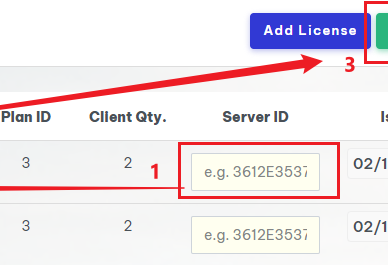
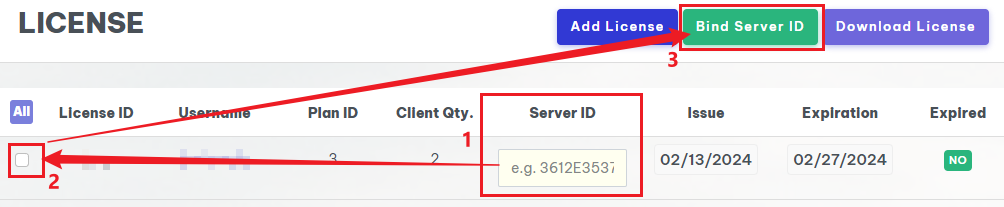
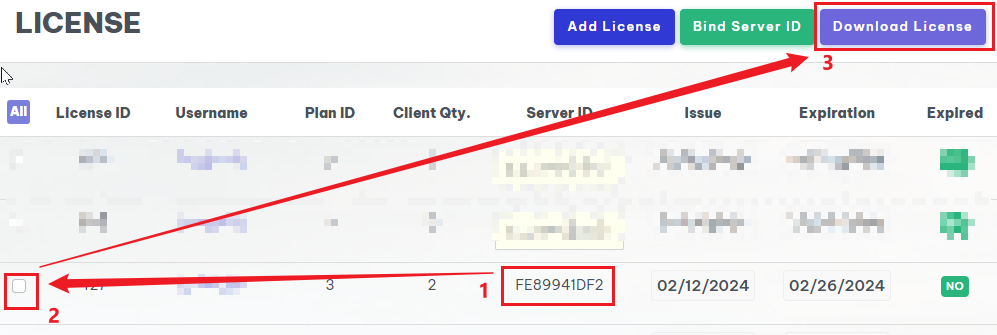
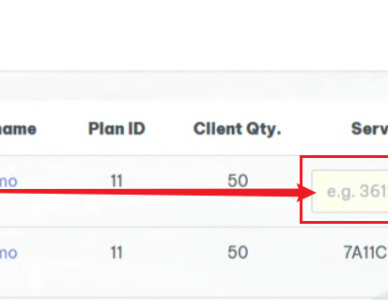
Setting/Group/Device similar to the user manual’s server section. License Type Type Work Email Verification Required Email Example Retail No john.doe@gmail.com Business Yes john.doe@abc.com Government Contractors Yes john.doe.ctr@usmc.miljohn.doe.ctr@fbi.gov Public and Government Sector (PGS) Yes john.doe@cia.govjohn.doe@dia.gov Free licenses for Government Sector (PGS) Obtain License for Air Gap Add License(s) Enter a value …
The CICB-Client Config Manager (CCM) is a stand-alone application that allows the IT administrator to update a security group via LDAP for the currently signed-in user. The CICB-CCM Command Line Interface (CLI) mode allows the IT administrator to deploy CICB-Client and CICB-Banner in a batch. The CCM also supports a …
CICB-Server (S) is the central service that communicates with CICB-Client and supported portal workflows. Setting Modes Online Mode When Online Mode is enabled, supported settings are retrieved from the configured portal workflow. IMPORTANT: Do not use Online Mode in SCIF or other secure environments where internet-connected workflows would violate policy. …
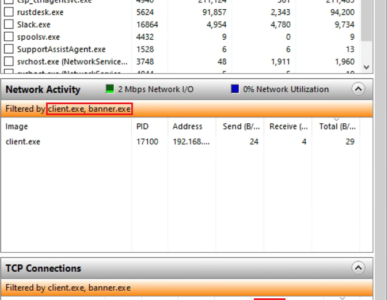
CICB-Banner (B) displays and reserves screen space for a classification banner. It communicates locally with CICB-Client on the same operating system. banner.exe is launched and controlled by client.exe. A system can run one banner instance per display. The number of supported displays per workstation depends on the active license tier. …
CICB-Client (C) connects to the CICB-Server (server.exe) and coordinates local banner instances (banner.exe) on the workstation. The client.exe process communicates with the server over the configured network connection and applies banner settings for each local display. For example, a workstation with four monitors can run four banner instances, with each …
COOKIES
We use essential cookies to make our site work. With your consent, we may also use non-essential cookies to improve user experience and analyze website traffic. By clicking Accept, you agree to the use of cookies on our website as described in our privacy policy.